

Table of Contents
Many new users would like to know how WordPress works first before they buy a domain name or a hosting plan, and that is an absolutely rational decision. When you’re just starting, buying hosting, managing installation, and configuring a website can seem like a big learning curve.
It’s natural to want to look around first and understand what WordPress offers from the inside, especially if you want to try WordPress without hosting for the first time.
There is nothing to worry about money when checking out WordPress because you do not have to pay for anything extra. There are different free ways with which you can get to the WordPress dashboard, try out themes and plugins, and get knowledge of the basics, all these without the need for buying a hosting or a domain.
These tools allow you to experiment safely without touching a live site and let you experience WordPress for free without a domain, using different environments like a wordpress sandbox or wordpress playground.
In this beginner friendly guide, we’ll walk you through multiple legitimate ways to try WordPress without hosting.
Why Use WordPress Before Buying Hosting or a Domain?
To launch a typical WordPress website, you normally need two essential components: a domain name (around $14.99 per year) and a hosting account (often $7.99 per month or more). Investing in these two makes sense for a live website, while learning or experimenting can be done without them.
But when you search, you see WordPress.org doesn’t provide an online trial version, so beginners may think hosting is necessary to view the dashboard. Luckily, that isn’t true; there are multiple ways to try WordPress without hosting and a domain.
Below are the simplest and most practical methods to try WordPress completely free. Keep reading to learn this.
3 Methods to Try WordPress Without Hosting or Domain
Method 1: Try WordPress Instantly With WordPress Playground
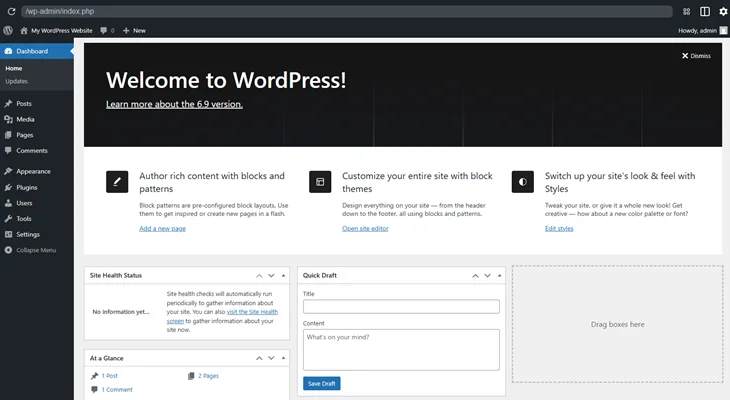
If you are looking for a quick way to go with WordPress, then a WordPress playground is what you need. Being entirely free, it operates directly from your browser and thus doesn’t call for installation, downloads, or signup. Therefore, it is an excellent option to try WordPress without hosting right away.
WordPress Playground creates a temporary WordPress site that behaves like a standard install. You can explore the block editor, switch themes, test settings, and create posts, all without affecting a real site. Since everything runs in the browser, your work stays temporary, keeping things simple and easy to reset. Closing the page resets the environment, just like using a wordpress sandbox.
Playground is perfect for:
- Getting familiar with the WordPress interface.
- Practicing with the block editor.
- Testing basic themes and trying plugins.
- Learning how WordPress settings work.
- Trying things without fear of breaking anything.
Just visit the playground website, wait a few seconds, and your temporary WordPress dashboard will appear. You can experiment freely, and if you want a clean environment, simply close & reopen the website.
Playground offers a simplified environment with temporary data and limited plugin usage for easier testing. However, it is the most straightforward way for newbies to try WordPress without hosting right away and check out WordPress for free without a domain.
Method 2: Install WordPress Locally On Your Computer For Free
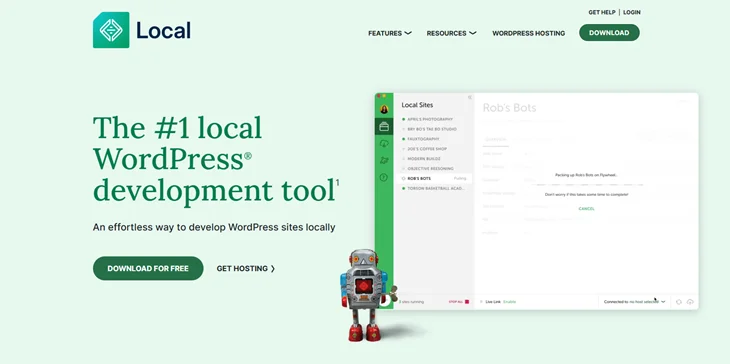
Installing WordPress on your computer is another excellent way to explore WordPress without spending a dime. This technique is a server-free setup and thus does not need a host or a domain. Your site starts as a private project, giving you full control until you choose to make it public.
This approach is often called a local WordPress setup, and it allows you to try WordPress without hosting while having full control.
Many developers, freelancers, and website builders prefer local WordPress installations because they are fast and safe. It allows you to test themes, plugins, custom code, and new designs without affecting anything online.
You can install WordPress locally using tools like:
- LocalWP (Local) – The easiest and most beginner friendly.
- MAMP – Great for Mac users.
- WAMP – Windows based alternative.
- XAMPP – Works on multiple operating systems.
- DevKinsta – More advanced option for developers.
LocalWP is the easiest way. Once the application is installed, just press ‘Create a new site,’ enter a site name, select the recommended settings, and provide your WordPress login details. WordPress will be downloaded and installed by LocalWP without your intervention.
After installation, click “WP Admin” to open your WordPress dashboard. From there, you can use WordPress exactly as you would on a live website, install themes, test plugins, modify settings, and create pages.
Method 3: Use WordPress.com Without a Domain
WordPress.com is a popular option for trying WordPress without buying hosting. It offers a free plan that gives you a site with a wordpress.com subdomain and lets you try WordPress if you only want to learn the basics.
Firstly, it is essential to know that WordPress.com and WordPress.org are two different things. WordPress.com is a service that is hosted for you, and you do not have to take care of the security, maintenance, or updates, but the free plan has its limitations.
Still, WordPress.com can serve you well if you want to learn the basics like using the block editor, writing posts, and tweaking simple themes. If you eventually choose to upgrade, paid plans allow plugin installations and more customization, though they tend to cost more than standard WordPress hosting.
Just Created a Free WordPress Website, What’s Next?
Once your free WordPress site is functional, I bet you are thinking about the next steps to take. This moment couldn’t be better to begin exploring the main features of WordPress and figuring out how to expand your site after deciding to try WordPress without hosting.
1. Start Creating Content in WordPress
One of the best ways to start is by adding content. Maybe write your first blog post or create some basic pages such as your Home, About, and Contact pages.
While you are doing this, you will figure out the workings of the WordPress editor, the process of inserting text and images, and also how to present your content in a visually appealing and interesting manner.
2. Pick a Design for Your Website
After publishing a piece of content, the next step is to decide the appearance of your site. There are more than 10,000 free and paid themes available on WordPress for you to use.
Pick a free theme and personalize it to reflect your brand. You have the option to change colors, fonts, layouts, and much more.
In case you desire to have absolute control over your design, a free drag and drop page builder such as Elementor might be the answer. It enables you to create the look of your pages without coding.
3. Exploring WordPress Plugins For Your Website
Plugins are what give WordPress its amazing power. Consider them as apps that introduce new functionalities to your site. By using over 59,000 free plugins, you can basically modify your website in any manner possible.
4. Learning the Basics of WordPress
If you feel overwhelmed or would simply like to create a solid foundation, then learning WordPress step-by-step is definitely the right thing to do.
There are thousands of free resources on the internet that collectively contain everything a beginner needs to know. You will find instructions for setting up your site, customizing themes, installing plugins, SEO optimizing, and much more.
The best way to start is probably by taking a beginner-level, well-organized WordPress course that introduces you to the basics simply and clearly. Additionally, you may want to look at free WordPress tutorial videos on YouTube if you prefer learning through visuals and need help with common tasks.
After mastering the basics, keep learning with more WordPress tutorials, use the WordPress glossary to look up unfamiliar terms, or subscribe to WordPress channels to get regular tips and updates.
Final Thought
Once you’re comfortable with WordPress, you might want to bring your site online. To do that, you’ll need a domain name and a hosting plan. Most hosting companies offer one-click installation, so launching your real site is quick and easy.
And if you have developed your testing site on your local system, it is possible to move it to a hosting provider with the help of a migration plugin or a tool that is built in.
So start to move slowly, achieve milestones one by one, and you will definitely be ready to launch your dream website or blog.
You May Also Like:
- How to Create a WordPress Website Using Elementor?
- Why Updating WordPress Matters & How to Do It Without Risk
- How to Fix Image Upload Issues in WordPress
Frequently Asked Questions
Can I try WordPress without paying for hosting or a domain?
Yes! You can explore WordPress completely free through tools like WordPress Playground, local installations (LocalWP, WAMP, MAMP), or WordPress.com’s free plan. These options let you test the dashboard, themes, plugins, and settings without spending anything.
Is WordPress playground the same as real WordPress?
WordPress Playground uses the real WordPress software. It works almost the same as a standard installation, but your data is temporary, and plugin/theme options may be limited. It’s perfect for quick practice and learning.
Will my test WordPress website be public?
When you work with LocalWP, MAMP, or WAMP, the sites you build are essentially private and can only be seen from your own computer. On the other hand, in the case of WordPress.com, your demo site is available for anyone to view unless you change the settings to make it private.
Can I move my free test site to real hosting later?
Yes. If you built a test site using LocalWP or installed locally, you can move it easily using migration plugins like Duplicator, UpdraftPlus, or your hosting provider’s built-in migration tools. This lets you continue your work without starting from scratch.