

Table of Contents
Still holding onto that old theme from 2018, just in case you need it someday? This guide is for you!
If you have been managing a WordPress site for a while, chances are you’ve collected a handful of unused themes along the way which is pretty common than you think.
But did you know those leftover themes can actually slow down your website and expose it to security risks? So, delete that unused themes is so important.
In this guide, we’ll walk you through how to delete themes in WordPress safely and explain why it’s smart to clean them up regularly. So let’s begin with some arguments.
Why Should You Delete Unused WordPress Themes?
You must delete unused WordPress themes to protect your website’s security and performance. When you keep an inactive theme in your WordPress, its file remains on your server, which can lead to security risks and vulnerability exploitation.

Think of a theme in your WordPress dashboard like an outfit in your closet. Your active theme is what your site is currently wearing, while inactive themes just sit in the closet, taking up space for that just-in-case situation.
Well, you sure might have a LOT of space in your closet, but WordPress doesn’t. Having multiple unused WordPress themes or inactive WordPress themes on your WordPress server is doing nothing but taking up space.
The result?
- More attack surface.
- Chances of malware injection.
- Server resource consumption for nothing.
- Database bloat.
- Slower WordPress dashboard.
That’s why, it’s recommended to remove WordPress themes which are not in use. Once you remove that, you can get a faster, more secure and cleaner WordPress experience.
What to Do Before Deleting a Theme in WordPress (Checklist)
New to WordPress and afraid to touch anything labeled ‘Theme’ because it feels like it’ll break the whole site? Don’t worry, we’ll show you how to be the boss of your own WordPress dashboard.
Now there’s also no need to just rush to delete all WordPress themes at once.
If you are new to WordPress, make sure to back up your entire WordPress site before making ANY changes here.
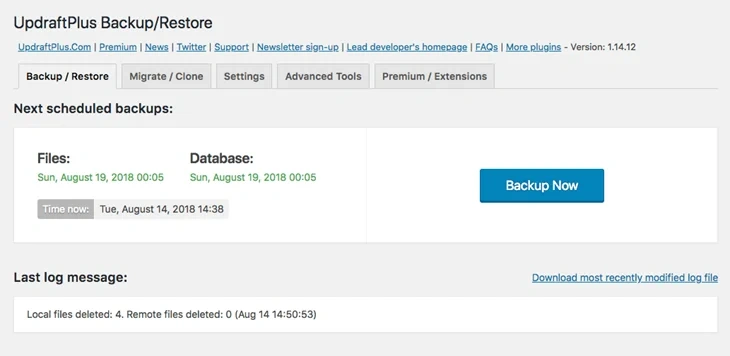
It is also a best practice to delete the theme on a staging site first to test for any issues, because we can never be more sure when it comes to WordPress.
Plus, remember you can’t delete a theme if:
- It’s still active and getting used.
- It’s a parent theme for the current active theme.
- Your site is on a multisite network, and that theme is getting used (active) on another site.
At last, before we get ahead, remember to save any important content like sidebar widgets or custom code for your WordPress themes. And Remember you can never delete a theme when it’s active. Thus, we suggest you check it once more.
How to Delete a Theme in WordPress (3 Easy Methods)
There’s more than one way. One of the easiest ways to delete a theme in WordPress is via the WordPress dashboard. So let’s take a look and see how it’s done.
Method 1: Delete a Theme in WordPress via the WordPress Dashboard
To delete a WordPress theme using the WordPress Dashboard, first make sure you have access to the admin screens. If you do, just log in to your WordPress admin area
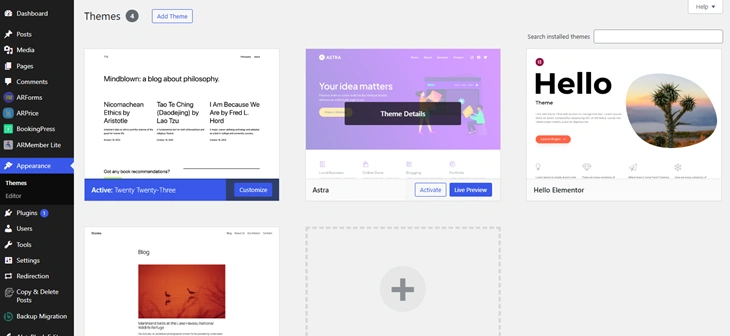
In your WordPress site, go to Appearance > Themes. Once in, it’ll show you all the installed themes you’ve got on your site.
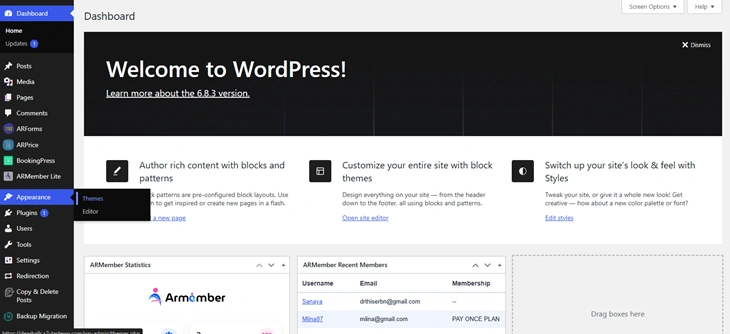
Remember the things we discussed regarding what to do before deleting any WordPress themes. With that in mind, scroll down the list of unwanted and unused WordPress themes and click on the theme you wish to delete.
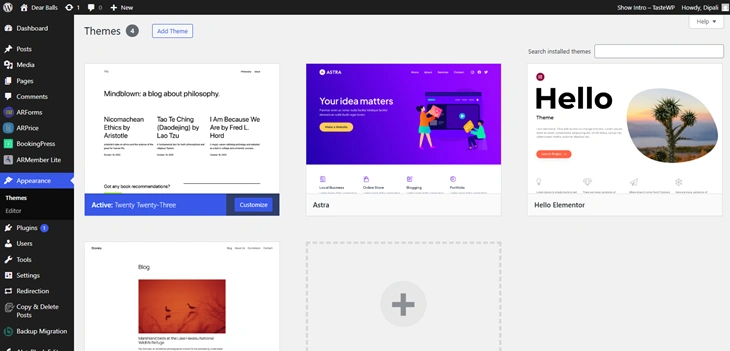
Reminder: You cannot delete the currently active theme. If you want to delete the active theme, you must first activate a different theme first.
Now, you just have to hover over the inactive theme you want to delete and click on “Theme Details.”
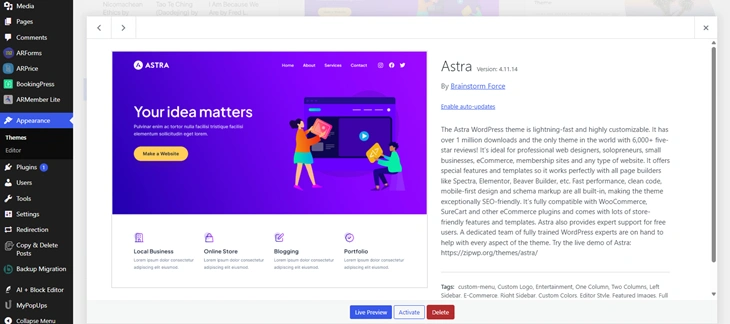
In the theme details pop-up, click the “Delete” button, which is located in the bottom right.
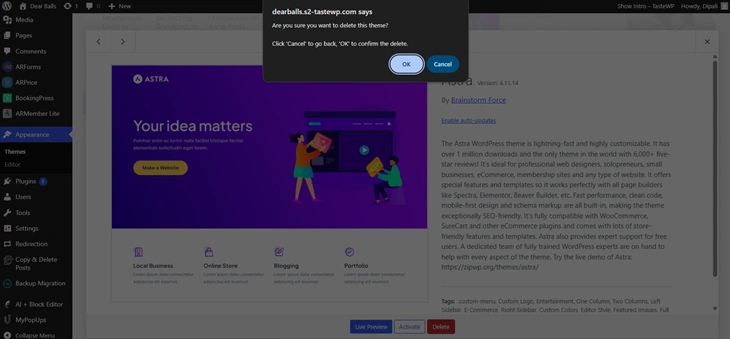
Now a confirmation pop up will appear. So just click on the “OK” to confirm the deletion of the theme.
This way, you can remove WordPress themes from your WordPress dashboard so easily
Method 2: Delete Themes in WordPress via FTP
Now, if you don’t have access to the WordPress dashboard, no worries! You can remove unused WordPress themes via FTP. So first, you have to connect your WordPress site via FTP. You can use an FTP client such as FileZilla for that.
If not connected, enter your FTP credentials such as:
- Hostname
- Username
- Password
- and Port
to connect to your web server. (These details are mostly provided by your hosting provider.)
Next, once you are connected, go to the root directory of your WordPress which is often named “Public_html” or “www”. After you finally locate the root directory, go to “/wp-content/themes/”.
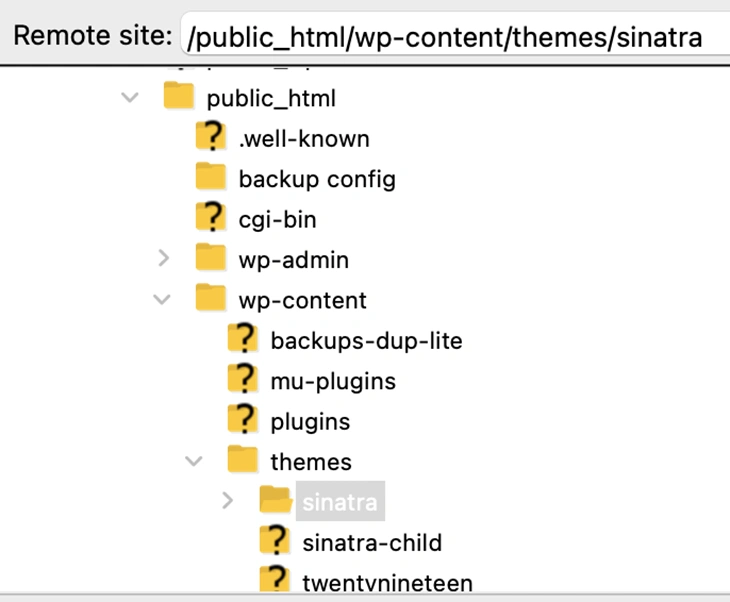
Here you can see all the WordPress themes you installed on your WordPress site.
Now here is something that makes this method a little risky. You have no way of knowing which one is your current active WordPress theme. But also, this is why we told you to take a backup first.
Hence, consider this method only if your current WordPress themes are broken and not letting you access your WordPress admin area.
Anyway, look for the WordPress theme folder you wish to delete and right click on it. Now you can see the small shortcut menu and many other options including “Delete”.
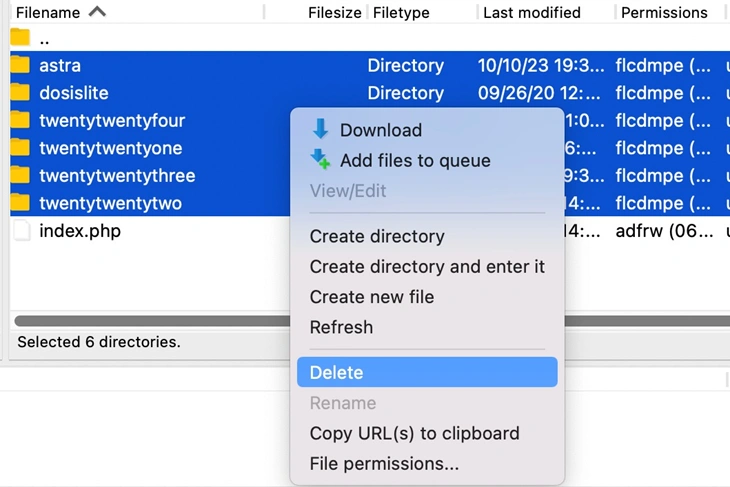
No need to be a curious one and check all options. Simply click on the “Delete” option from the shortcut menu and confirm it if asked by your FTP client.
Method 3: Delete Themes in WordPress via Hosting File Manager
Thinking about how to remove themes from WordPress if you have no access to FTP, either? It’s simple: Remove your unused WordPress themes right from your hosting control panel.
This is one of the most convenient methods when you have no WordPress admin area access or additional software for FTP clients.
Firstly, you have to log in to your hosting account and get access to your web hosting panel such as cPanel, hPanel, or any other customer hosting panel by your host.
Once logged in, look for the “File Manager” option in your hosting control panel. You’ll mostly find it under the Files or Advanced section.
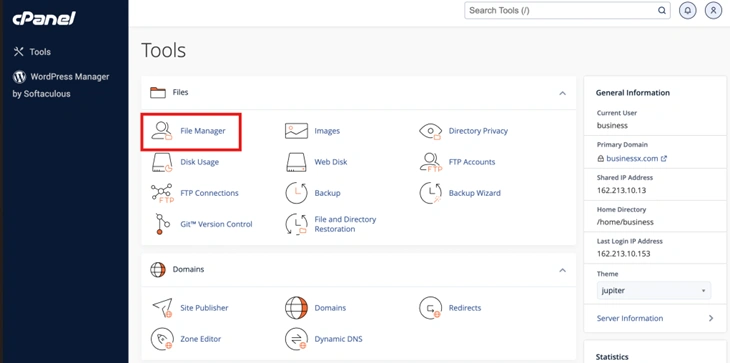
Next, find your WordPress website’s root directory. Again, it’s mostly named as “Public_html” or your domain name.
Then go to the “wp-content” folder > “themes”.
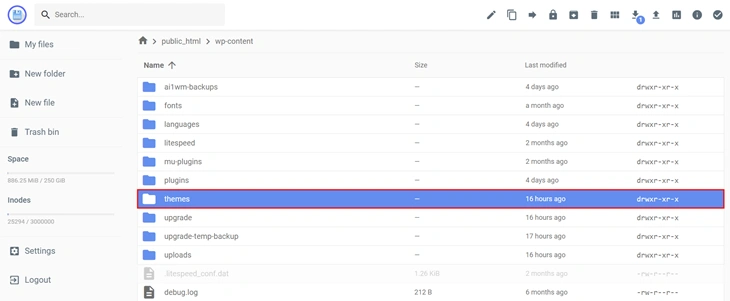
Just like in FTP, you’ll see a list of theme folders here too. Each folder represents a theme. That’s why, make sure you don’t delete the active theme.
If you’re unsure which theme is active and have dashboard access, just type Ctrl + U and find “/themes”. You definitely find the theme name there. And yes, also back up your website.
Now, once you found the WordPress theme you want to delete, simply right click on that theme folder and choose the “Delete” option from the shortcut menu.
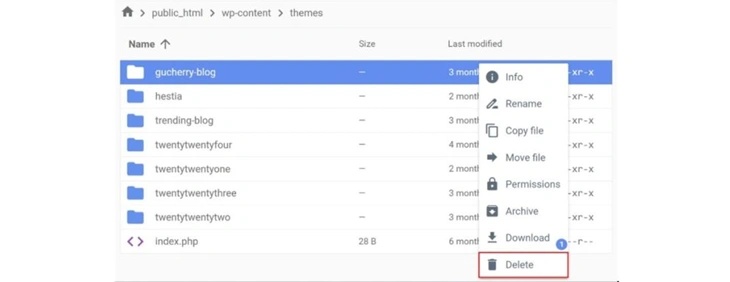
Some hosts may ask you to confirm the deletion. Thus, go ahead and approve it to remove unused themes in WordPress.
Yet here’s a thing. Some hosting control panels move deleted files to a trash folder first. If that’s your case, you’ll need to clear it too to delete the WordPress themes permanently.
What to Do After Deleting a WordPress Theme
So you’ve deleted that old, unused WordPress theme, now that’s what we call a great start! But you’re not done just yet.
Here are a few important steps to take after removing a WordPress theme, just to be sure your website stays clean, fast and error-free:
1. Clear Your WordPress Cache
If you’re using a caching plugin like WP Super Cache, W3 Total Cache, or your host has built-in caching, clear it right now. This makes sure your site loads the most up to date files only and doesn’t try to take reference from old theme assets.
2. Delete Unused Theme Files & Media
Some themes add demo content, extra CSS, or custom folders during setup, yet it’s easy to delete.
Just go to Media > Library and look for old images or files related to your deleted themes. Now make sure to remove anything you no longer need from here.
3. Check Your Site for Broken Layouts
Always visit the front end of your site once, just to be on the safe side. And a few key pages too to make sure nothing looks off.
The reason is to check your WordPress site for any broken layout. Sometimes widgets, menus or shortcodes are tied to a theme and we don’t realise it at the time of deletion. This quick check helps you spot anything that needs updating or fixing.
4. Update Your Backup
Always back up your WordPress site before making any changes! We are sure these were our exact words at the start of this guide.
So if you’re using a backup plugin like UpdraftPlus or BlogVault, remember to take a fresh backup after cleanup and check all the things. That way, your backup doesn’t include any deleted themes.
5. Run a Security Scan (Just in Case)
Scanning after major cleanup is a smart way to ensure nothing malicious was hiding in old themes.
You can use the best WordPress security plugins like Wordfence or Sucuri. They allow you to scan for leftover files and also any vulnerabilities.
Conclusion: Keep Your WordPress Site Lean, Fast & Secure
Removing unused WordPress themes may appear like a small task, but it sure has a big impact on your WordPress site’s speed, security and overall performance.
Now, no matter whether you decide to delete themes in WordPress through the WordPress dashboard, via FTP or using your hosting file manager, always make sure to backup your entire site.
Then take a few minutes to clear out what you don’t need carefully, keep only what you use, and remove the unnecessary codes.
Once you done this, your WordPress site isn’t just easier to manage, it’s safer, faster and more enjoyable for your visitors as well as for you. Start by deleting that one theme you know you’ll never use and make your site lighter and performance focused.
You May Also Like:
- How To Use WP_Query in WordPress (Best Techniques)
- How To Try WordPress Without Hosting or Domain For Free
- How to Fetch Data From an API in WordPress Easily
Other Common Questions About Deleting WordPress Themes
How do I remove an old theme in WordPress?
You can remove an old WordPress theme via the WordPress Dashboard, FTP or Hosting File Manager. However, always take a backup before doing this, especially if the old theme contains any custom code or widgets.
Why can’t I delete a theme in WordPress?
You can’t delete a theme in WordPress if it’s:
🔹 still active and getting used,
🔹 a parent theme for the current active theme,
🔹 on a multisite network and the same theme is getting used (active) on another site,
🔹 The current active theme is just getting tested.
What happens if I uninstall a theme in WordPress?
When you uninstall a theme in WordPress, its files and design options are removed from your server. However, your content stays intact unless the theme adds custom post types or widgets. Thus, always check your layout after uninstalling any WordPress theme to make sure no layout breaks.
How do I deactivate a theme in WordPress?
To deactivate a theme in WordPress, simply activate another theme. WordPress only allows one active theme at a time, so activating another theme will automatically deactivate the previously activated one.
How do I clean up unused theme files in WordPress?
You can clean up unused theme files in WordPress by deleting them right from your WordPress admin dashboard, via FTP client or from the hosting file manager. After deleting a theme, clean up unused theme files from your Media > Library.