

Table of Contents
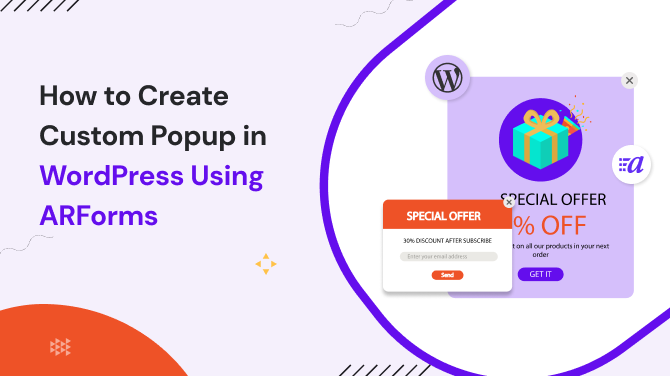
Everyone’s familiar with popups that appear at just the right moment to capture attention, so it is a highly effective tool when used thoughtfully. A custom popup that looks clean, appears at the right time, and offers something valuable can become one of the best tools for growing your audience.
I will show you how to build a custom popup in WordPress using the plugin in this article. Here we will make a simple newsletter subscription popup that helps you collect emails without frustrating your visitors.
What is Custom Popup and Why Use It?
A custom popup appears as a small message box that appears while someone is browsing your website and can be used for a variety of purposes, such as gathering sign-ups, advertising an offer, sharing updates, and providing useful information. Your goal is to plant a seed in user’s browsing experience and not disrupt it.
For example, you could include an email subscription form that pops up after a user has read at least half of your blog post. By that time, they are already engaged with your content, so the request to sign up seems and feels natural and useful, rather than an imposition.
When done right, a custom popup is simply a polite tap on the shoulder – a gentle reminder to your user that states, “Hey, if you want to stay informed…” In this case, it doesn’t feel irritating; it has been a great way to connect with your users, encourage engagement, and grow your website, all while keeping user experience free-flowing.
Why Use ARForms Instead of Other Plugins for Popups
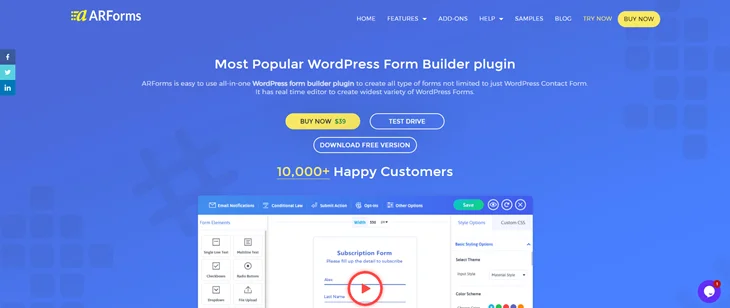
There are a number of WordPress popup plugin options out there, like Popup Maker, OptinMonster, and even the Elementor popup feature, but ARForms is the best choice. It’s a full form builder that doubles as a popup builder, which means you can design, style, and display forms and popup with one plugin.
Here’s why bloggers and small-business owners like it:
- Single plugin to add a form & popup on the website.
- You build everything with drag and drop; no need for coding.
- It integrates with major email platforms like Mailchimp and ConvertKit.
- It’s mobile responsive, so your newsletter subscription popup looks perfect on phones.
- The interface feels familiar if you’ve ever used WordPress blocks.
So if you’ve ever struggled with setting up a custom popup, ARForms makes the whole process much smoother.
Steps to Create a Custom Popup Using ARForms
Popups can be valuable to your business if used correctly and can provide benefits such as growing your audience, promoting offers, and encouraging sign-ups without being obnoxious.
With ARForms, setting one up is incredibly simple. You don’t need multiple plugins or write a single line of code. All of the work of creating your form and displaying it in a popup occurs in the same plugin.
Here’s how you can create a neat, professional looking newsletter subscription popup in just a few steps.
Step 1: Build and Customize Your Form
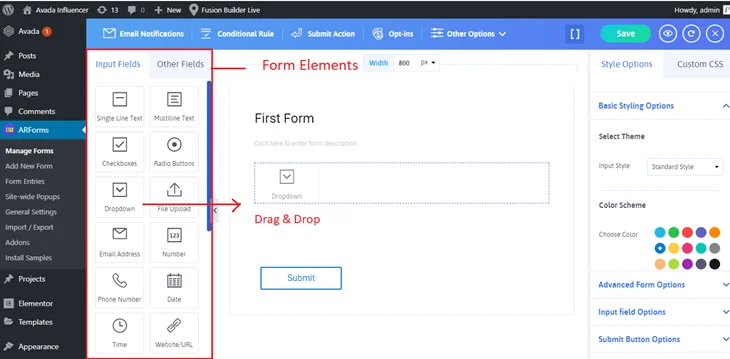
Once you’ve installed and activated ARForms, head over to your WordPress dashboard and go to ARForms > Add New Form.
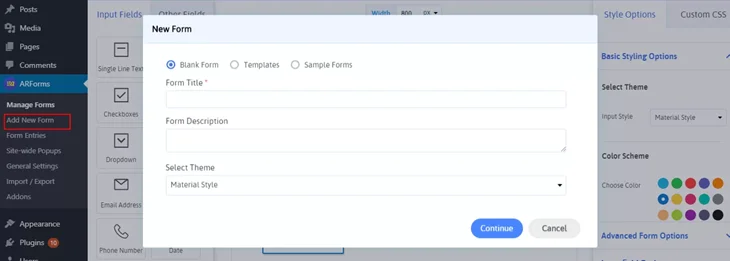
You can start from a blank canvas or use one of their pre-designed templates if you want a quick setup.
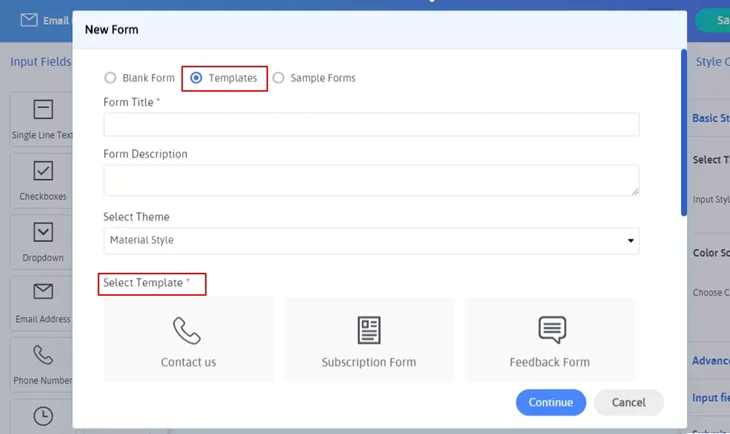
For a basic email subscription form, just stick with two fields: Name and Email. Simple forms always convert better because they ask for less effort from your visitors.
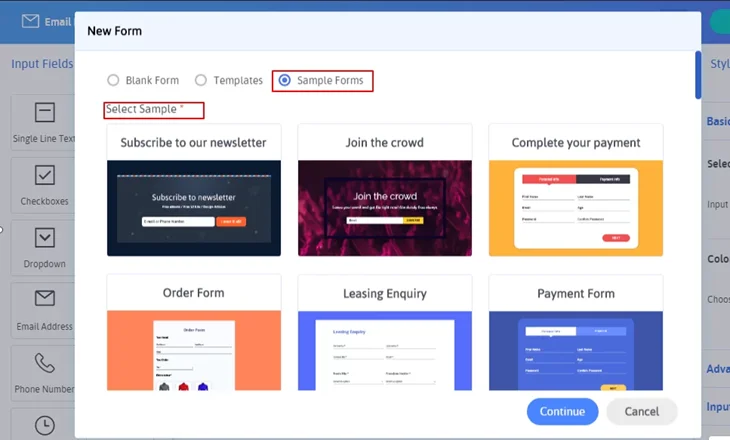
You’ll find a clean drag and drop form builder that’s really easy to work with.
Next, give your form a personal touch. Try a short message like:
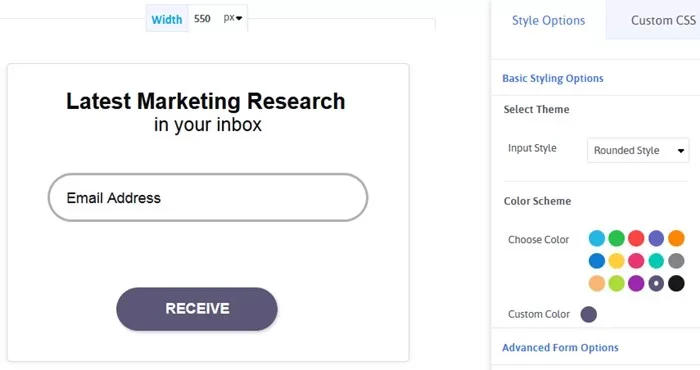
“Join our WordPress community and get simple tips straight to your inbox.”
Change the button text from the usual “Submit” to something a little more personal, like “Sign Me Up” or “Get Updates.”
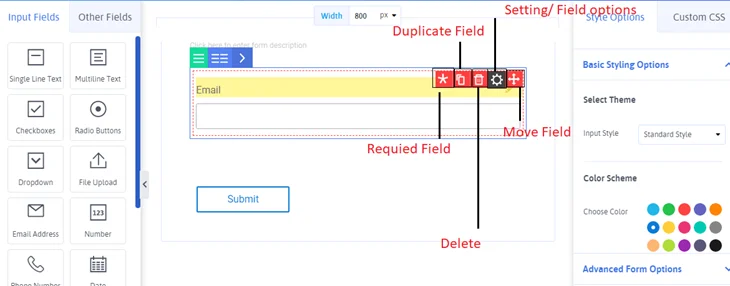
ARForms lets you adjust everything like colors, fonts, button shapes, and spacing so your custom popup matches your website’s look perfectly.
If you plan to connect it with your email marketing tool, click on the Opt-in tab and choose your provider (Mailchimp, AWeber, ConvertKit, Sendinblue, etc.).
This way, every time someone subscribes, their details go straight to your email list. Once everything looks good, click Save Form.
Step 2: Connect Your Form to Your Email Tool
Your form is now set up, so let’s connect it to your email service.
Go to ARForms > Global Settings > Email Marketing Tools, and make sure your API key is functioning properly. This connects your form to the right email platform so every sign-up automatically gets added to your mailing list.
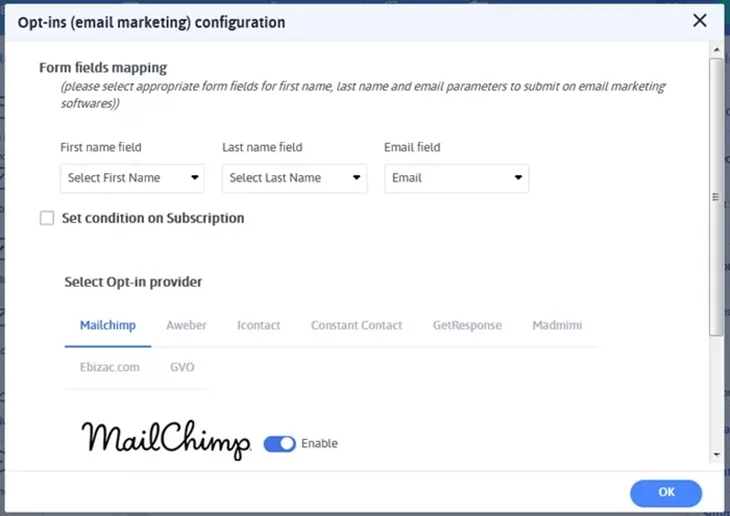
If you like, you can connect more than one email tool if you’d like to test different platforms or campaigns or devices.
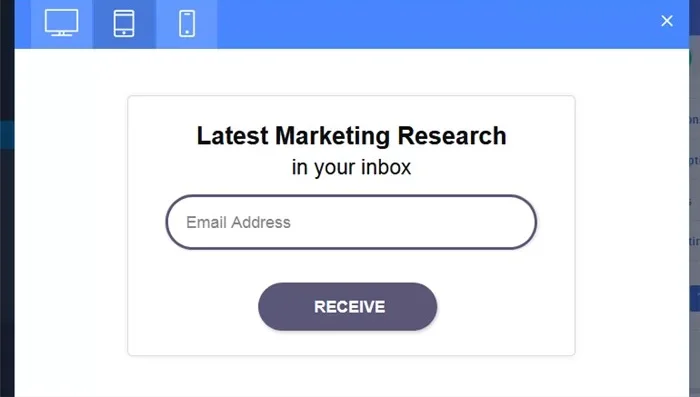
Step 3: Turn the Form into a Popup
Now comes the fun part, making your form appear as a popup on your site.
Go to the page or post where you want to show it. In the editor, look for the ARForms Shortcode Generator (you’ll see the ARForms icon if you’re using the classic WordPress editor).
Select your form, then choose the Modal (popup) Window as the display option. This turns your regular form into a popup window that appears when visitors interact with your site.
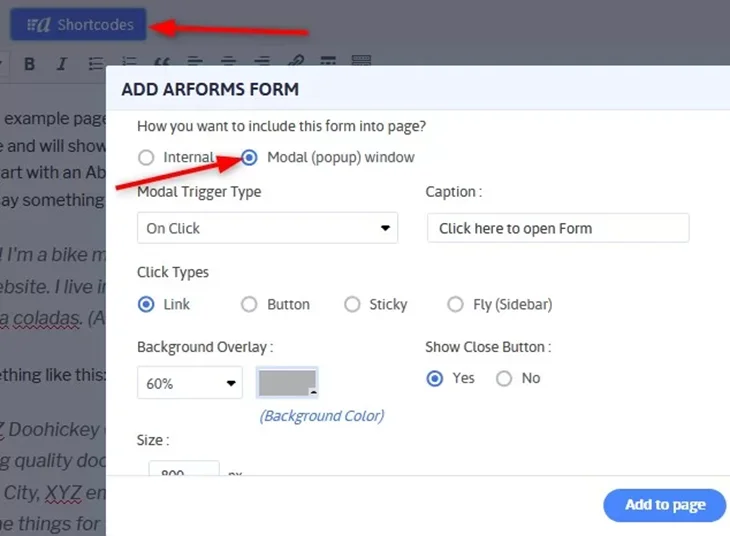
You’ll get several display options here:
- Trigger type: Open on click, after a few seconds, when a user scrolls down, or just before they leave your site (exit intent).
- Click style: Show it as a button, a link, or even a floating tab on the side of the screen.
- Layout: You can go with a centered window, full-screen layout, or a smaller box tucked in a corner.
- Animation: Add a bit of effects to catch attention, like fade in, slide, or zoom effects.
Step 4: Preview and Adjust the Form
Once your settings are in place, insert the shortcode into your page and click Preview to see how it looks.
Please make sure your custom popup opens in a natural manner and that it does not cover any important content on the page, and an obvious (X) close button is available and easy to click.
You can always tweak the appearance, animation, or timing. A gentle fade-in usually feels natural and works well for most blogs.
Step 5: Test and Publish
Before going live, give your newsletter subscription popup a quick test. Submit your own email to check that it’s being added correctly to your mailing list.
Look at it on both desktop and mobile to be sure it’s responsive and looks right everywhere.
Once you’re happy with how everything functions, click Publish, and that’s it. Your custom popup is now live!
Essential Tips to Improve Your Popup
A plugin like ARForms or the Elementor popup tool gives you flexibility, but success depends on your message and design. Here’s what usually works best:
- Keep it short. A sentence or two and a button are enough.
- Provide valuable content or offers. Free downloads, tutorials, or member-only content work great.
- Match your site’s style. Consistent colors and fonts feel professional.
- Use friendly language. Write like you’re talking to a friend, not pitching a product.
- Use popups thoughtfully to create a better user experience. Display it once per session to enhance the user experience, instead of showing it with every page refresh.
These small tweaks make your newsletter subscription popup far more effective than any aggressive full screen ad.
Wrapping Up
Using ARForms to create a custom popup in WordPress is one of the simplest ways to increase your subscriber count. You design your email subscription form, connect it to your mailing tool, and decide exactly when it should appear. That’s all it takes.
Unlike bulky alternatives, ARForms keeps the setup clean and straightforward. An elegant newsletter subscription popup that quietly operates in the background and brings you new subscribers every day can be created in just one hour.
Make sure your message is understood, and your design is straightforward. Your custom popup will convert casual readers into active followers if you respect their time and provide genuine value.
Frequently Asked Questions
How do I track my newsletter subscription popup performance?
You can monitor sign-ups and conversions through your connected email marketing platform or website analytics. Analyzing this data will help you make design, timing, and copy optimizations for better outcomes.
Can I create different popups with ARForms?
Yes. ARForms enables you to create all kinds of popups, from newsletter sign-ups to offers for discounts to contact forms. You can also set when and how to show popups, such as on scroll, delay, or exit intent.
How do I stop popups from annoying visitors?
Show them at the right time, not immediately. And make sure to display it once per session, instead of every page refresh.
Do I need coding skills to make a popup with ARForms?
Absolutely no coding. ARForms has a visual drag-and-drop editor. With a few clicks, you can connect your email service, create your form, and set triggers.
Can I show different popups on different pages?
Yes. You can select which pages or posts you want your popups to appear on with ARForms. You could, for example, display one popup on your blog and another on your homepage or product page.
You May Also Like: