

Table of Contents
While working on a WordPress site, you may want to get direct access to your site files, e.g., to fix a critical problem, upload new themes, or change the configuration settings. Although the WordPress dashboard is great for almost all tasks. But sometimes a few changes need to be made behind the scenes.
Clearly, FTP (File Transfer Protocol) is an indispensable tool in such a case.
With FTP, you can link your computer to the FTP server of your website and edit files directly, the same way as if you were using File Explorer on your computer. In particular, it is a great tool when your WordPress dashboard is not functioning properly or you need to resolve a technical issue by referring to the manual.
What Is FTP?

FTP (File Transfer Protocol) is a standard network method that allows file transfer between two systems, your computer (the client) and your website’s hosting server. It’s one of the oldest yet most reliable ways to manage website files.
When you connect via an FTP client, you can access every file that makes your WordPress site run, including theme folders, plugins, configuration files, and uploads. This gives you complete control over your site’s structure.
Using FTP with WordPress, you can:
- Upload or replace themes and plugins
- Edit files like wp-config.php or .htaccess
- Restore backups
- Transfer large batches of media
- Access your site when the admin dashboard is down
What Is SFTP (and How Is It Different)?
File Transfer Protocol is a widely used method for transferring files, and for added security, it’s best paired with encryption. The problem with this is solved by SFTP (Secure File Transfer Protocol) by encrypting your connection via SSH (Secure Shell). This way, it is ensured that your login details and files are kept safe during the transfer.
| Protocol | Encryption | Common Port | Recommended For |
| FTP | ❌ No | 21 | Basic transfers or testing environments |
| SFTP | ✅ Yes | 22 | Secure file management on live websites |
Tip: On live websites, always go for Secure File Transfer Protocol rather than FTP. Most modern hosting providers are set up to support SFTP connections by default.
Why You Might Need FTP for WordPress
Most of the WordPress operations can be done via the dashboard; however, there are certain circumstances in which FTP WordPress access is necessary.
1. Uploading Themes and Plugins Manually
When you need to add multiple plugins at once, like for migration, an FTP client will help you to directly put the files inside:
- /wp-content/themes/
- /wp-content/plugins/
This method combines the advantages of completely bypassing the upload size limits and also ensuring that your files are installed correctly.
2. Fixing Site Crashes or Errors
If the site crashes due to the update of a plugin, you can still connect to the FTP server and rename the folder of the plugin that caused the problem in /wp-content/plugins/, thus disabling the plugin immediately and bringing the site back online without the need for the dashboard.
3. Editing WordPress Configuration Files
Critical files like wp-config.php and .htaccess control your website’s functionality. Through an FTP client, you can safely edit or replace them to enable debugging, adjust permissions, or fix redirect issues.
4. Creating Manual Backups
Before updating or migrating your site, File Transfer Protocol lets you download every file directly to your computer. This ensures a complete backup of your theme, media, and settings.
5. Uploading Media Files in Bulk
With FTP WordPress, it is possible to batch upload up to hundreds of media files in no time at all, thus considerably speeding up the process as compared to using the dashboard Media Library.
6. Removing Malware or Corrupted Files
An FTP client is the tool that lets you locate and remove malware or hackers files on your server when your website gets hacked or orally infected. You can do it in a safe way by deleting and replacing them.
How to Connect Your WordPress Website via FTP
Connecting your FTP client to WordPress may seem technical, but it’s quite straightforward. You will need:
- An FTP client (FileZilla, Cyberduck, or WinSCP)
- Your FTP server credentials (host, username, password, port)
- Access to your hosting panel to locate or reset credentials
Step 1: Install the FTP Client
An FTP client allows you to link your PC with your FTP server in a more friendly way that is, visually, without the need to use command lines.
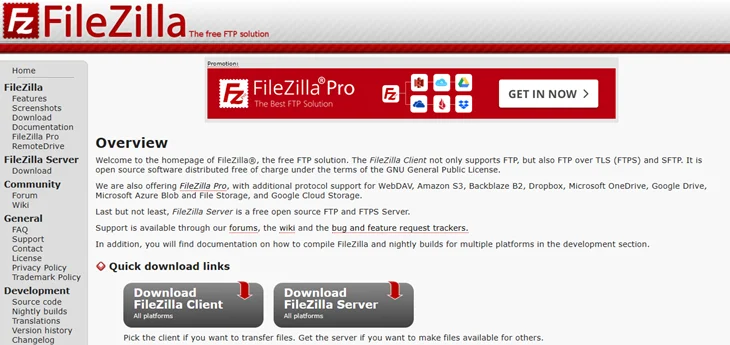
The most popular options are FileZilla, Cyberduck, and WinSCP.
To install FileZilla:
1. Visit filezilla-project.org.
2. Download the FileZilla Client (not Server).
3. Install and open it on your computer.
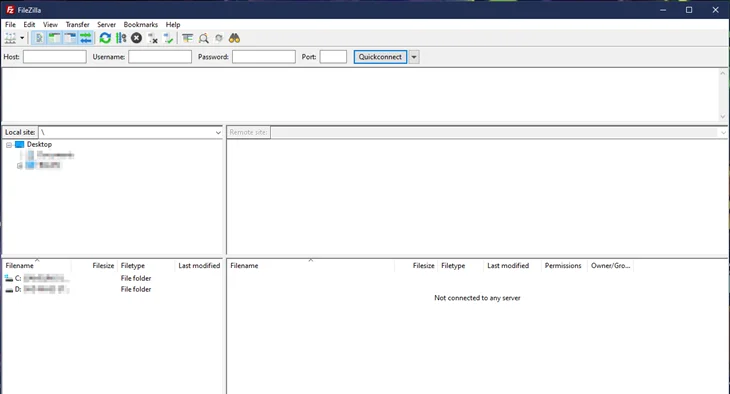
After launching the software, you will view the files on your computer on the left side and, after the connection, the files of your website will be at the right side.
Step 2: Get Your FTP Credentials
You can find your FTP login details in your hosting control panel (like cPanel or SiteGround Tools).
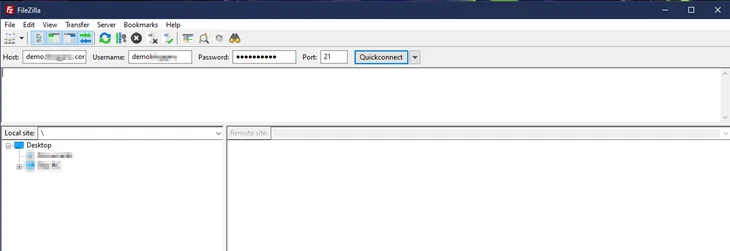
Typically, you’ll need:
- Host: your domain or server IP (e.g., ftp.yourdomain.com)
- Username & Password: created in your hosting account
- Port: 21 for FTP or 22 for SFTP
In FileZilla, enter this information at the top and click Quickconnect. If the login is correct, your FTP client will show the website’s directory structure.
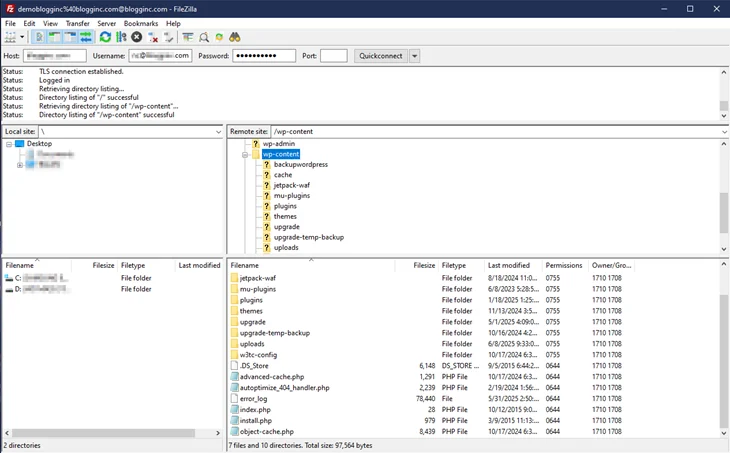
Pro Tip: Save your connection details in “Site Manager” for quick future logins.
Step 3: Locate the WordPress Root Folder
After connecting, locate your main WordPress folder. It’s usually found under /public_html/, /www/, or a folder named after your domain.
Inside, you’ll see:
- wp-admin — admin files
- wp-content — themes, plugins, uploads
- wp-includes — WordPress core
- wp-config.php — configuration file
Always confirm you’re editing the right folder if your hosting account contains multiple sites.
Step 4: Manage Your Files
Once you’re connected, you can manage your site files easily.
Handle files like wp-config.php or .htaccess with care to ensure smooth site operation.
When finished, click Server > Disconnect to safely close your session.
Essential Practices While Using FTP
FTP is a means of giving you a very direct look at your website’s inner workings. It’s very powerful and flexible, but also very critical; a small change can cause serious problems. To be safe, follow these best practices:
1. Always Create Backups – Before you edit or delete anything, download a full backup of your WordPress files and database.
2. Use SFTP for Security – Make sure you always connect through SFTP (port 22) rather than a regular FTP. This provision guarantees that the connection is encrypted and thus no one can intercept the password.
3. Avoid Deleting Unknown Files – In case you don’t know what a file is, it is safer to rename the file rather than delete it. It gives you the freedom of going back to the original quickly if something doesn’t work.
4. Don’t Modify Core WordPress Files – Focus on editing files in safe directories like /wp-content/ and leave core files intact. Instead, make changes in child themes or custom plugins.
5. Test on a Staging Site First – Try out your changes on a staging site before making them live to avoid any problems on your live site.
6. Secure Your Credentials – Store your FTP username and password securely using a password manager. Keep them private and secure at all times.
Conclusion
At first glance, FTP can be quite daunting, but as soon as you get the hang of it, it turns out to be one of the most dependable methods of handling your site. In case your WordPress dashboard is not accessible, FTP still allows you to have complete control over your files, letting you upload, repair, and back up data.
Moreover, when it is coupled with Secure File Transfer Protocol, it provides both safety and convenience to the users.
Understanding what FTP is and being proficient in using it with WordPress will definitely make you more capable of handling mistakes, updates, and backups without the need for the dashboard.
You May Also Like:
- How to Fetch Data From an API in WordPress Easily
- Why Updating WordPress Matters & How to Do It Without Risk
- 9 Basic Steps to Secure a WordPress Site in 2025
Frequently Asked Questions
What is FTP used for in WordPress?
FTP allows you to access your website’s server directly to upload, edit, or remove files. It’s often used to fix site errors, install plugins manually, or back up files.
What’s the difference between FTP and SFTP?
FTP sends data in a non-encrypted way, whereas SFTP adopts SSH encryption for a secure channel. It’s always better to go for SFTP with live sites.
How do I find my FTP details?
FTP credentials can be attained either through your hosting control panel (e.g. cPanel) or in the welcome email from your hosting provider.
Can I install plugins or themes using FTP?
Certainly. Add plugin files into /wp-content/plugins/ and theme files into /wp-content/themes. Then, do the activation from the WordPress admin panel.
Why am I unable to connect to my site via FTP?
Check if your login details are right, whether your port number is compatible with your type of connection (21 or 22), and most importantly, see if your firewall is not causing connection blockage. If, after all, there are still problems, then get in touch with your hosting provider.