

Table of Contents
Ever clicked on your own WordPress site and wondered….”Why does it take forever to load?” You’re not alone!
Slow WordPress sites are one of the biggest reasons you’re losing visitors before they even get a glimpse of your homepage, but the good news? It’s totally fixable.
In 2026, speed isn’t just about user experience; it’s about SEO, conversions and trust.
In fact, even a 1 sec delay increases the bounce rate by 32%. Yet on the bright side, a 2% boost in conversion rate is seen for every 1 second improvement in website loading speed.
So, if your WordPress dashboard feels sluggish or your WordPress site speed test score looks depressing, no need to worry anymore. Just implement what you learned in this blog.
In this speed optimization guide, we’ll show you how to fix slow WordPress sites step by step. Also covering both:
- Front end performance issues like images, caching, and scripts,
- And admin side slowdowns like database bloat and plugin overload.
By the end, you’ll know exactly how to make your WordPress site load lightning fast without breaking your design or spending high on hosting.
So, let’s begin!
Why is My WordPress Site Running So Slow?

To fix slow WordPress sites, first, we have to understand the root cause of the problem. So here are some usual suspects that make your WordPress site really slow:
- Poor web hosting.
- Lack of Content Delivery Network.
- Unoptimized large image files.
- Too many or heavy WordPress plugins.
- No caching.
- Outdated WordPress/PHP versions.
- Too many database queries.
- Too many requests for different CSS, JavaScript, and font files.
Now that you know the common WordPress speed issues that make your website Slow, you can easily spot what’s likely dragging your site down.
So let’s go through the steps on how to fix slow WordPress sites!
How to Fix a Slow WordPress Site?
1. Test Your Website Loading Speed

As we just discussed, there are just too many reasons that make WordPress load slowly.
So before you start tweaking some settings or deleting plugins, you need to test how slow your site actually is. So let’s start by testing your WordPress site speed so you can see the real impact of your optimization later.
There are many popular tools for testing your WordPress site speed, such as:
- GTmetrix: This is great for analyzing total load time, requests and waterfall breakdowns.
- Pingdom: It’s a simple and visual tool, yet it’s perfect for catching heavy files and server delays.
- Google PageSpeed Insights: Now this speed test tool gives you real world data from Chrome users (Core Web Vitals).
Now, if the term Core Web Vitals sounds too technical, allows us to explain in simple terms. The Core Web Vitals mainly represent 3 metrics combined:
- LCP (Largest Contentful Paint): This shows how fast your main content loads. Make sure to aim for under 2.5 seconds.
- TBT (Total Blocking Time): This measures how long scripts block your page from being interactive.
- CLS (Cumulative Layout Shift): This shows how many elements “shift” while loading.
Now, if your score looks low, we’ll fix that in no time. Still remember to take a baseline score before we process further with WordPress speed optimization.
2. Optimize Images for Better Performance

Ever uploaded a 5MB image thinking it wouldn’t matter? Think again. Images are often the biggest culprit behind slow pages, but luckily, they’re also the easiest to fix.
Just compress your images without losing quality. There are many tools for image optimization in WordPress, like:
- ShortPixel
- TinyPNG
- Smush
- EWWW Image Optimizer
- and Envira Gallery
These WordPress image compression and optimization plugins can automatically shrink image sizes while keeping them crisp. On top of that, you can convert your images to WebP, a format that’s both lightweight and high quality.
Next, enable lazy loading. Lazy loading makes sure your website images load only when users scroll down to them. Afterall, it’s smarter to load only what users need as there’s no point in making them download the whole gallery if they’re just reading the intro!
In addition, don’t forget about responsive image sizes. Upload images that adjust to different devices so your mobile visitors aren’t forced to load giant desktop photos.
Quick Tip: Avoid uploading full resolution banner images. A 10MB file belongs in your photo album, not your homepage!
3. Install a Speed Optimizer Plugin

Want to speed up WordPress websites with just one plugin? No worries, as speed optimizer plugins have got you.
A speed optimizer plugin takes care of caching, file compression, and performance tweaks, all without touching a single line of code.
Here are the top WordPress speed optimizer plugins, which also come with caching as their core feature:
- WP Rocket
- WP Fastest Cache
- W3 Total Cache
- LiteSpeed Cache
These WordPress speed optimization tools mostly help you in:
- Caching: Saves static versions of your pages for instant loading.
- Code minification: Removes extra spaces and characters from code.
- Browser caching: Stores assets in users’ browsers for quicker revisits.
- GZIP compression: Compresses file sizes for faster delivery.
4. Clean and Optimize Your Database
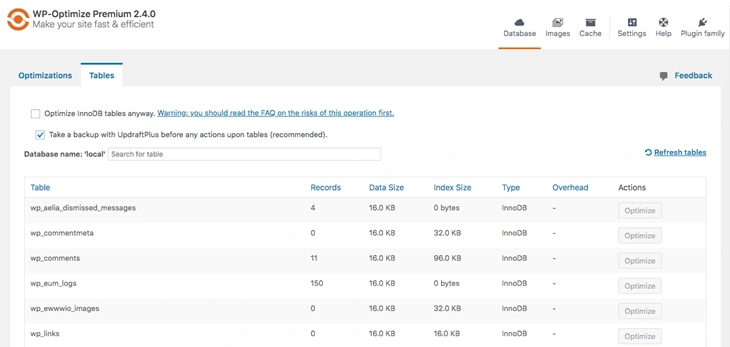
Now that our WordPress speed optimization plugin is taking care of all, it’s time for us to spare a glance at the database of your WordPress site.
Because over time, WordPress sites naturally collect extra data like revisions and spam comments, so cleaning it up regularly keeps performance smooth.
The best part? You don’t have to do it manually, as WordPress plugins such as WP Optimize or Advanced Database Cleaner sweep away the clutter in the database automatically.
Expert Tip: Schedule automatic cleanups once a month. That way, it keeps your WordPress site always clean and optimised without any manual cleanup!
5. Upgrade to a Fast Hosting Provider

Ever tried running a race with a backpack full of bricks? That’s what shared hosting feels like. Your hosting provider directly affects TTFB (Time to First Byte) and server response time, the two major speed factors.
We know shared hosting is budget-friendly, but it can slow down when traffic spikes, so upgrading to better hosting ensures consistent speed.
That’s why we recommend you go with either:
- VPS hosting, which has better resources and stability for growing sites.
- Or Managed WordPress hosting, which has optimized servers, automatic caching and expert support.
Also, many upgraded hostings come with built-in caching or LiteSpeed support, which is like switching from default mode to performance mode automatically.
6. Use a CDN (Content Delivery Network)

If your visitors are all over the world, why make them all fetch your site from one location? Use a CDN (Content Delivery Network) that stores your website’s files on multiple servers worldwide. Thus, it delivers your WordPress site to them from the nearest point.
To make it easy for you, there are many popular options like Cloudflare, Bunny.net, and Jetpack CDN that make your site load faster for everyone, no matter where they are.
7. Always Pick Lightweight Plugins and Themes
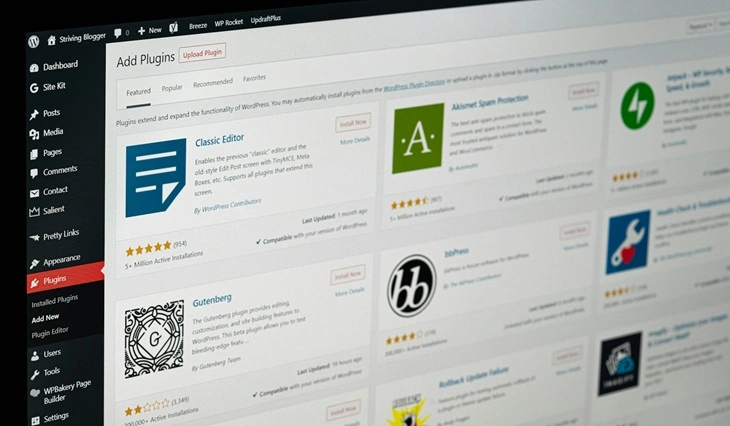
Every plugin and theme you add comes with extra code and too much of it can actually slow WordPress sites. On the other hand, fewer and lightweight plugins keep your WordPress dashboard faster and make optimization much easier.
We understand WordPress plugins are essential for extending the core WordPress features. But try to go with plugins that are lightweight, well coded and most importantly, essential for your site’s goal.
Think about it yourself. Do you really need five different contact form plugins? Probably not! So just pick one single all-in-one best contact form plugin like ARForms, which is both lightweight, well-coded and feature-rich.
Also, stick with lightweight themes like Astra, GeneratePress, or Kadence. They’re clean, fast and built for high performance. Moreover, avoid page builder bloat. Heavy builders can slow down rendering, so opt for block-based or lightweight alternatives whenever possible.
How to Fix WordPress’s Very Slow Admin Area
Sometimes you see that the WordPress dashboard is moving slowly, even though your front-end pages are lightning fast. That happens because backend performance often gets overlooked. But fixing it is easier than you think.
Here’s how to fix the slow WordPress admin area:
- Update your PHP version to PHP 8.0+.
- Make sure all your WordPress plugins, WordPress themes and WordPress core are updated.
- Clean your WordPress database.
- Disable dashboard widgets to speed up WordPress.
- Increase your PHP memory limit.
- Try to limit your post revisions as WordPress saves every change you make.
- Disable autosaves or just extend the intervals if you are confident in your workflow.
- Enable object caching (Redis or Memcached) as it stores frequently accessed data in memory, making your dashboard snappier and database queries faster.
- Switch to a faster admin theme or disable Gutenberg blocks if unused.
Let’s Conclude: Smart Ways to Speed Up Your WordPress Site
A fast WordPress site keeps your visitors happy, ranks better on Google, and gives your business the performance edge it deserves. To fix slow WordPress sites, you can use all the WordPress speed optimization tips and tricks we discussed.
Here is a quick recap of common problems that slow down WordPress sites and their solutions.
| Common Problem | Why It Happens | Quick Fixes |
| Slow Loading Pages | Large images, no caching | Compress images using ShortPixel, TinyPNG. Use a caching plugin like Speed Optimizer Plugin or WP Rocket. |
| Bloated Plugins or Themes | Too many or poorly coded addons | Use lightweight themes like Astra, or GeneratePress. Deactivate unused or heavy plugins. |
| Weak Hosting Server | Shared or low quality hosting | Upgrade to managed or VPS hosting with built in caching. |
| Unoptimized Database | Old revisions, spam comments, transients | Clean with WP Optimize or Advanced Database Cleaner. |
| No CDN Setup | Content served from one location only | Use Cloudflare, Bunny.net, or Jetpack CDN. |
| Slow WordPress Dashboard | Autosaves, too many widgets, low PHP memory | Disable widgets, limit revisions, increase PHP memory. |
| Outdated WordPress/PHP | Old software slows performance | Always update WordPress core, theme, plugins and PHP version. |
So what are you waiting for? Now is the time to start fixing your slow WordPress sites using these smart methods and watch your WordPress site transform from slow to super fast in no time!
You May Also Like:
- How to Clear WordPress Cache Without Plugins
- Why Updating WordPress Matters & How to Do It Without Risk
- How to Customize WordPress Themes? (Complete Guide)
FAQs
Why is my WordPress site running so slow?
Your WordPress site is running slow because of many common reasons, which can be either poor hosting, large unoptimized images, no caching, outdated PHP or WordPress versions, too many plugins, or a lack of CDN. Sometimes, too many database queries or multiple CSS and JS requests can also slow WordPress websites.
How do I speed up my WordPress site?
To speed up your WordPress site, you can simply:
🔹 Optimize and compress your large web images.
🔹 Using a caching or speed optimizer plugin.
🔹 Clean your database.
🔹 Upgrade to a WordPress-friendly hosting provider.
🔹 Use a CDN.
🔹 Use lightweight plugins and themes.
How to make WordPress admin faster?
You can update your WordPress core and PHP version, clean your database and disable dashboard widgets to make your WordPress admin faster. Further, you can also remove unwanted plugins, themes and use a caching plugin to fix your slow WordPress admin area.
How to increase WordPress website speed without a plugin?
You can increase WordPress speed without any extra plugins by:
🔹 Compressing and optimizing your website images manually
🔹 Enabling browser caching via .htaccess
🔹 Removing unnecessary code from your CSS, JS and HTML
🔹 Using a CDN
🔹 Updating WordPress and PHP versions
🔹 Switching to a faster and optimized hosting provider