

Table of Contents
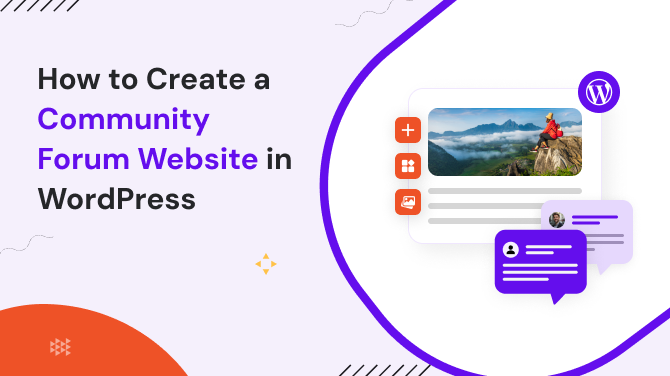
Are your website visitors just scrolling and leaving without interacting? You are not alone! Most websites struggle with one big problem and that’s low engagement, but you can change that with an online forum.
A WordPress community forum gives your site that human touch, a place for users to talk, ask, and share. And with plugins like bbPress and ARMember, you can launch one quickly.
In this tutorial, we’ll walk you through building a forum with bbPress and ARMember to grow your online community.
What is a Community Forum Website?

A community forum website is an online space where people can discuss topics, ask questions, and share ideas around a common interest.
Thus, it’s like a digital gathering spot. Here, users can post messages, reply to others and build ongoing conversations.
A community forum website is usually built using WordPress forum plugins like bbPress, BuddyPress, or ARMember, which let you manage users, discussions, and memberships, all within a WordPress website.
In simple terms, a community forum website is a place where your users or members can connect, collaborate and engage with your brand or niche.
Why Build a Community Forum Website?
Building a community forum website is actually more profitable than you think. It can increase valuable UGC content, increase website engagement rate and also increase returning visitors.
Also, building a community forum website is all about creating connections. Here are some major benefits to create community forum website:
- Online forums can easily encourage your visitors to ask questions, share opinions, and interact with others.
- Builds trust and loyalty as people feel heard and supported.
- Reduces support load for businesses as your forum becomes a self help hub where members answer each other’s questions.
- Every new discussion creates fresh content and keywords, which helps your website rank higher in Google.
- Helps in building a strong brand authority because people will visit your site because it’s the go to place for answers.
What You’ll Need to Create a Community Forum Website in WordPress
Alright, so you’re ready to build your own online community in WordPress. But before jumping into the steps on how to create a community forum in a WordPress site, let’s take a look at what exactly you need to get rolling:
Sure, a thing that you won’t need any coding skills to create a community forum. But you need the right set of tools and a little planning. Here’s a checklist you need to get started:
- A WordPress Website: First, you sure need a working WordPress site. If you don’t have one yet, just buy a domain, choose a hosting plan, and install WordPress (most hosts do this in one click!)
- A Forum Plugin (like bbPress): Next, you need WordPress forum plugins like bbPress to create and manage forums. It also allows you to add topics, replies, user roles and more, all right from your WordPress dashboard.
- A Membership or Access Plugin (like ARMember): Want to keep certain discussions private or create member only forums? That’s where ARMember comes in. You can easily set up user roles, restrict access and even monetize your community with paid memberships
- A Theme That Supports Forums: While most themes work just fine. Still, choosing a forum friendly theme makes sure your community looks effective, responsive and easy to understand.
- A Plan for Moderation & Engagement: Last but not least, you should think of setting up some basic rules, appoint moderators and try to keep your forum discussions friendly and valuable.
Quick Powerful Recap: You’ll need a WordPress website + bbPress + ARMember + a good theme + a good plan to manage your community forum website.
Once that’s all ready, you’re all set to start building your very own WordPress forum site. So now, let’s start with step by step guide:
How to Create a Community Forum in WordPress
Step 1: Install and Activate bbPress
We hope you already got your WordPress setup, website and dashboard and have begun to be familiar with it.
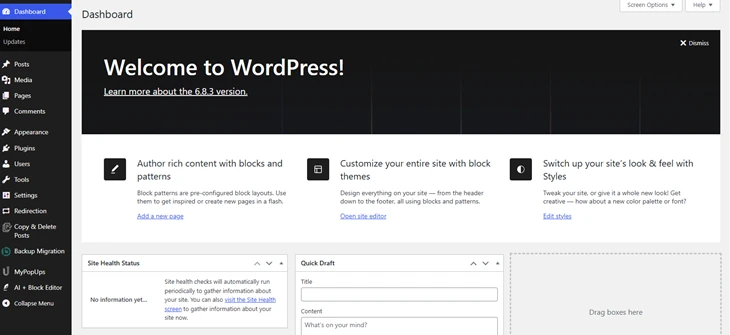
If still not, take a look at our beginner friendly guide on how to install and set up WordPress with ease.
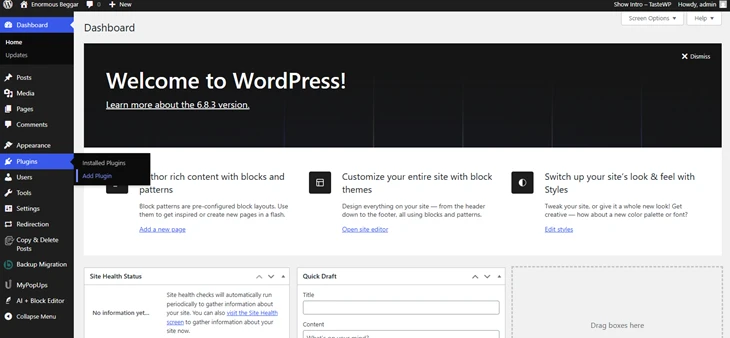
Now, let’s get started by installing a WordPress community forum plugin. First, go to your WordPress dashboard > Plugins > Add Plugin.
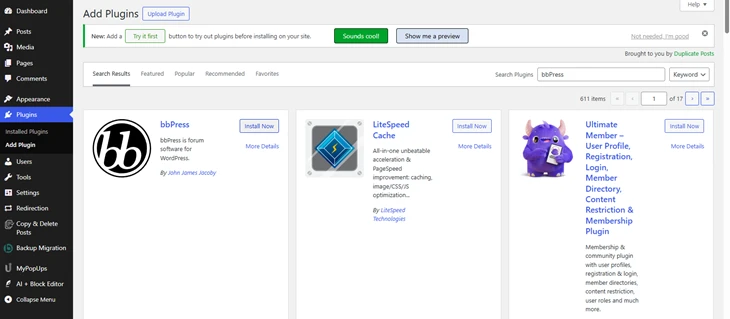
Next, search for “bbPress”. And once you find it, simply click on Install > Activate.
Once your bbPress WordPress forum plugin is activated, you’ll see new options in your WordPress dashboard such as Forums, Topics, Replies and more.
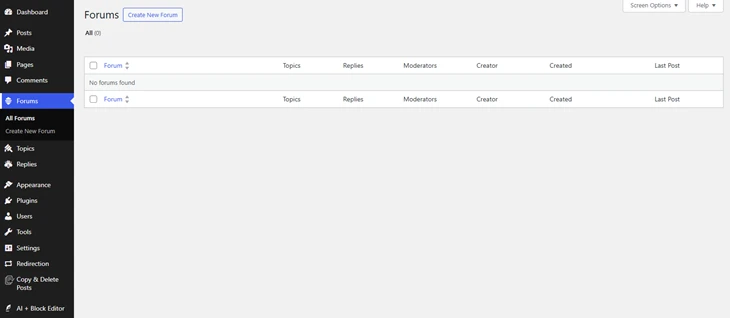
These are the building blocks of your community and it means you have finally installed your first WordPress plugin with ease.
Step 2: Create Your First Forum
Now that bbPress is installed, it’s time to launch your very first discussion space
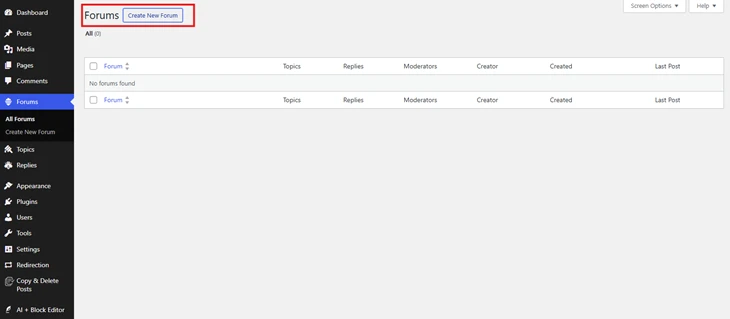
Just head over straight to Forums > Create New Forum.
After that, you just have to set your forum name and a short description. For example, let’s say you want to create an online community to discuss the same interest in cooking. So give the forum name, online food recipes community and add description or instructions related to it.
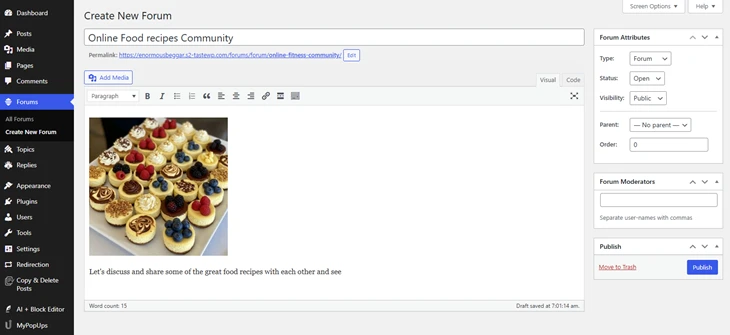
At last, when all is set to go, just click “Publish”.
And that’s it – Congrats! You’ve finally created your first forum section.
Step 3: Set Up Forum Pages
When you activate bbPress, it automatically generates key pages for your forum:
- Forum Index: a list of all forums.
- Individual Topics: user discussions.
- User Profiles: where members manage their posts and settings.
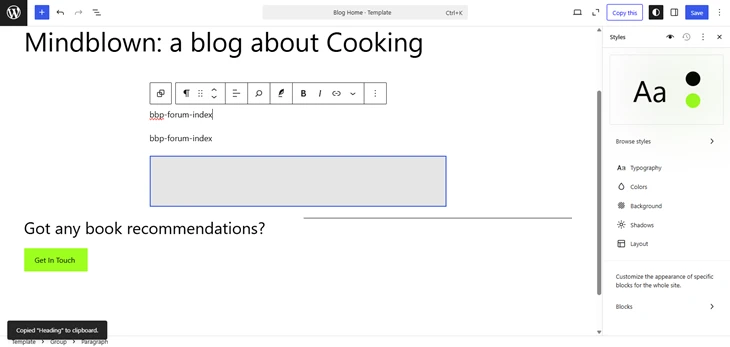
The best part? You can manually add a forum index anywhere using the shortcode like this:
[bbp-forum-index]
To make your online forum appear more easily, go to Appearance > Menus. From here on, you just have to add your Forum Page to the main menu so visitors can find it easily.
Step 4: Enable User Registration
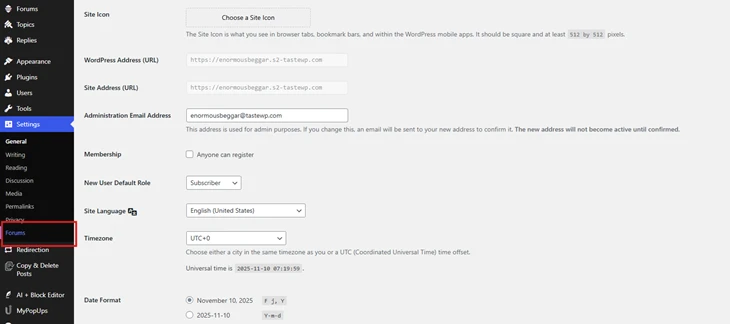
If you want your users to post or reply on any forum, they’ll need an account. So now it’s time to configure your forum’s settings by going to Settings > General.
Next, just check the box for “Anyone can register,” and it’ll allow all users to be able to register for accessing your online community.
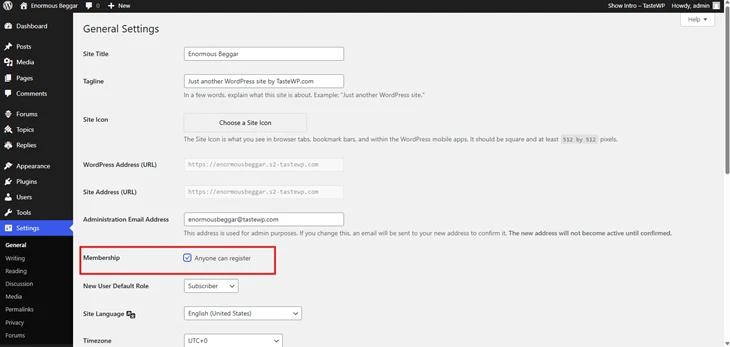
This lets users sign up directly from your website.
Bonus Tip: To improve security, add a CAPTCHA or email verification plugin to prevent spam signups.
Step 5: Configure Forum Settings
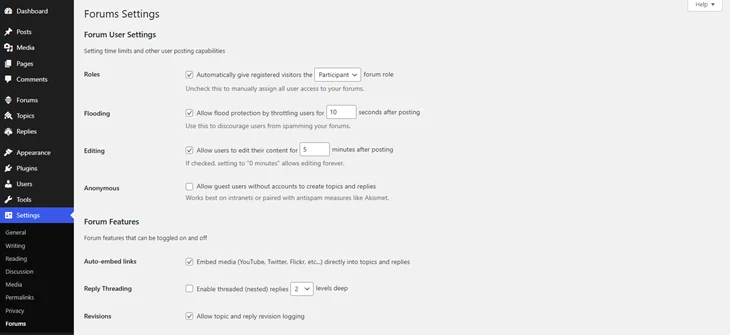
Lastly, it’s time to fine-tune your forum behavior. For that, go to Settings > Forums.
From here, you can easily configure your forum’s settings such as:
- Topics per page and Replies per page
- Anonymous posting
- Moderation
- Flooding protection
- Visibility options and so much more.
Step 6: Restrict Forum Access with ARMember
If you want to create exclusive or paid community sections, then you need ARMember plugin.
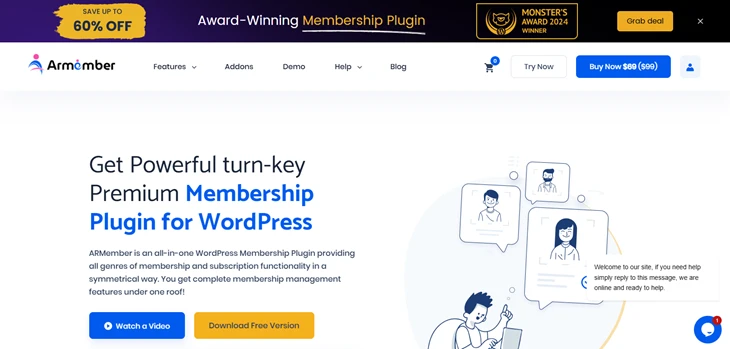
ARMember is one of the most powerful WordPress membership plugins that allows you to create unlimited membership plans. It effortlessly integrates with WordPress forum plugins like bbPress and BuddyBoss for creating an exclusive online community.
What’s more, it offers awesome community building features such as:
- Public member profiles.
- Directory templates.
- Gamification elements like badges, rewards and points.
- Flawless BuddyPress/Buddyboss forum support.
- Fully customizable user profile.
- Synchronize Gravatar or BuddyPress Avatar.
- In-built form builder for creating WordPress registration and login forms.
- 21+ secured and popular payment gateways.
- Powerful content restriction and drip content rules.
- Advanced building security options.
- Powerful addons like Social Community Addon to create an on-site social network and so much more.
So to get started, first we’ll install and activate the ARMember plugin the same way we did with bbPress. Here’s a super simple guide to install and activate ARMember in your WordPress dashboard.
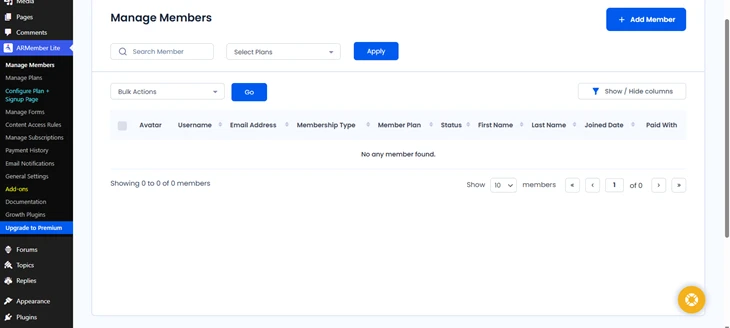
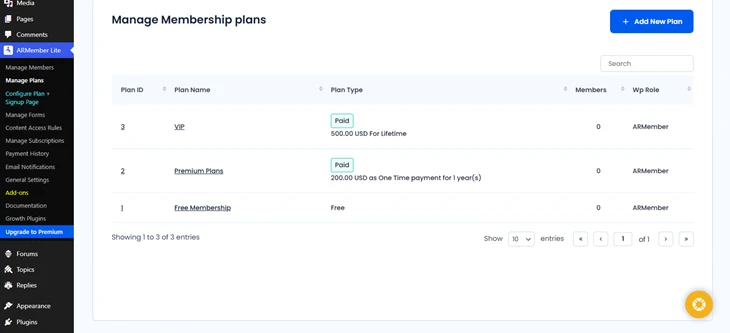
Once installed and activated, go to ARMember > Manage plans > Add new plan and from here on, you will be able to create membership plans like Free, Premium, or VIP.
Next, if you want to restrict your forum access to free users, go to ARMember > Content Access Rules and select which membership levels can access specific forums or topics.
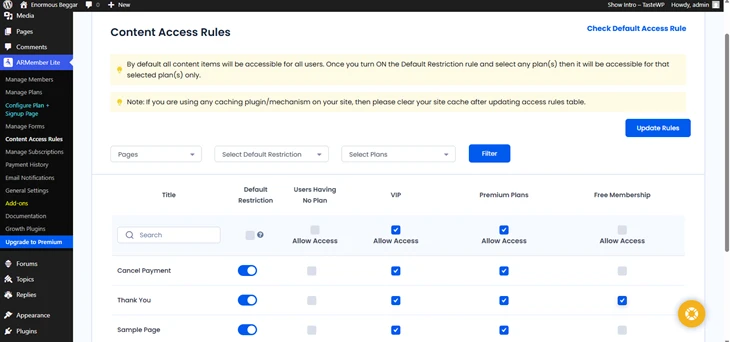
Moreover, you can even create private member-only forums, such as: “Pro Members Discussion” – Only for elite members
This way, you can monetize your community while keeping discussions relevant and secure.
Step 7: Add Community Perks
At last, to make your community forum more fun, you can add interactive features too.
- Gamification: You can add gamification elements such as badges, points or a leaderboard to give your users a healthy competitive environment.
- Member Profiles: Integrate with BuddyPress or use ARMember Social Community Addon to add profile pages, friend connections and more.
- Automated Notifications: Send alerts when someone replies to a topic or mentions another member via WhatsApp, SMS and Email using ARMember.
With ARMember and bbPress, you can flawlessly create your own community forum website in WordPress.
Community Forum Website Examples for Inspiration
Looking for a little creativity spark before starting your own online community forum? We’ve got you!
Here are some real life community forum website examples to show you how powerful (and engaging) an online forum can be. Moreover, all these online community forums are built around specific goals, interests and community.
So let’s take a glance.
1. WordPress.org Support Forums
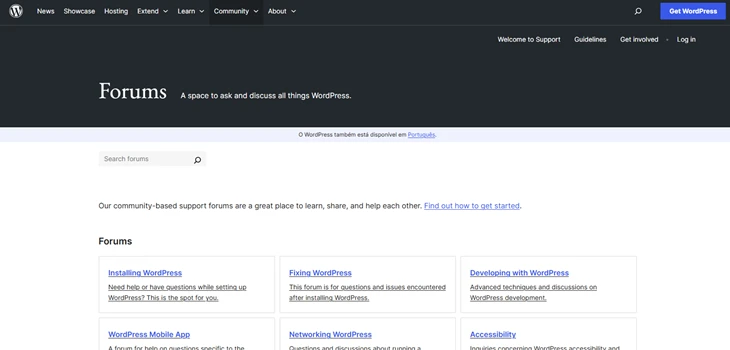
- Type: Technical Support & User Help
- Built With: bbPress
The official WordPress.org forum is the first best example of online community forums.
Here, WordPress users ask questions, share fixes, and discuss updates. Moreover, each topic also stays organized, searchable, and moderated. Thus, this is perfect for large scale support environments.
So if you’re planning to create a SaaS based WordPress website, bbPress style threaded discussions make it super easy to manage user support without extra tools.
2. MyFitnessPal Community
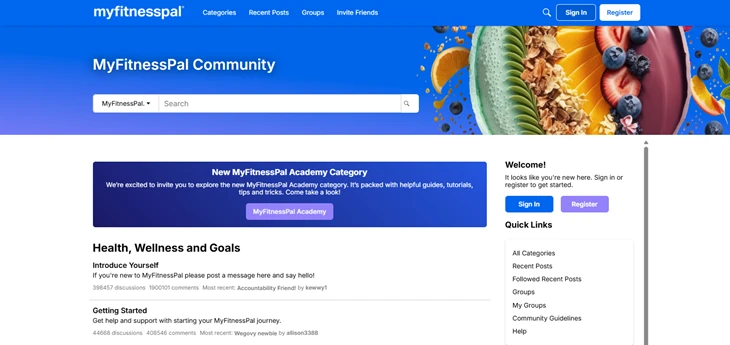
- Type: Health & Fitness Support
This type of forum connects fitness enthusiasts who want to share their diet tips, workouts and motivation. Best of all, it includes gamification elements like badges, categories (nutrition, weight loss, success stories) and regular community challenges to keep its members engaged all the time.
For membership sites or online fitness programs, combining forums with some awesome gamification elements actually boosts members’ retention and daily engagement.
3. Steam Community Discussions
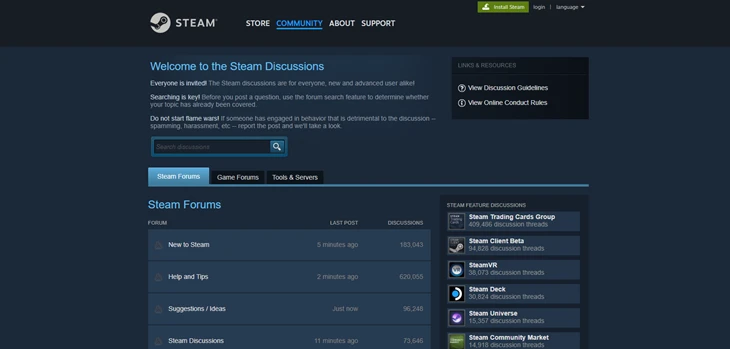
- Type: Gaming Community
Steam’s discussion boards let gamers or players share experiences, report bugs, and create fan-made content. Furthermore, it’s a vibrant example of peer-driven support mixed with entertainment.
Thus, if your niche involves gaming, tech, or digital products, this is the best community forum website example.
4. Stack Overflow
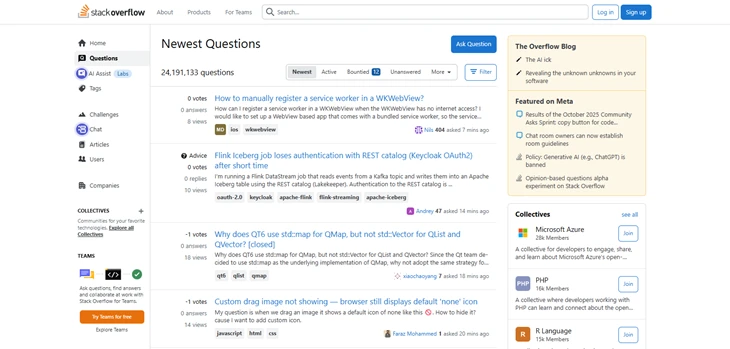
- Type: Q&A Forum
Stack Overflow is the most popular and professional forum among developers and coders for sharing coding solutions. In this forum, each answer gets votes, which helps highlight the best responses and solutions to problems.
You can also add voting systems or reputation points to get more higher quality contributions in your forum
5. DogForum.com
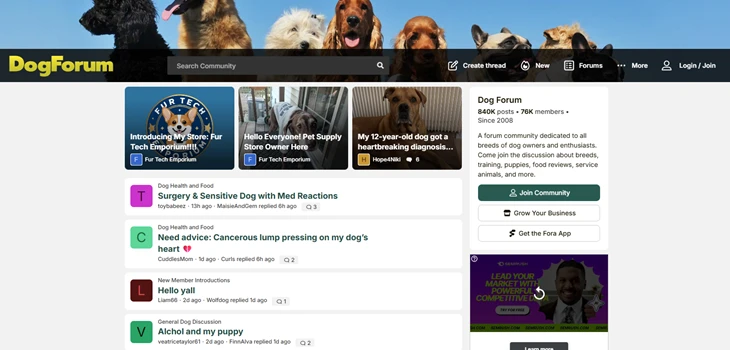
- Type: Hobby and Lifestyle Forum
It is a friendly forum where dog lovers discuss breeds, training, and care. This online community forum uses clear categories, user profiles and image uploads to make discussions personal and engaging.
So for niche or lifestyle sites that want to focus on community bonding, you can let your members share their stories, photos and advice.
Conclusion
In a nutshell, creating a community forum website in WordPress is one of the best ways to turn your regular WordPress site into a thriving hub of engagement.
Also, having a forum on your website allows your users or members to share their ideas, ask questions and connect.
The best part? Creating and managing an online community forum site is easier than ever with tools such as bbPress and ARMember.
bbPress helps you handle discussions, topics, and replies effortlessly. On the other hand, ARMember allows you to add a membership layer which is perfect for creating exclusive private, paid and tiered access communities.
No matter whether you’re building a support forum, a learning community, or a fan based community, WordPress gives you the full freedom to make it happen with no coding at all.
So go ahead and start your community forum website today with ARMember and bbPress!
You May Also Like:
- How To Make A Custom Login Page In WordPress (With Plugin)
- How to Create Custom Popup in WordPress Using ARForms
- How to Add Captcha in Contact Form 7 WordPress (Easy Steps)
FAQs
What is the purpose of a community forum?
The purpose of a community forum is to give an online space where people can connect, ask questions, discuss and share ideas on a common interest topic or niche. By having a community forum website, businesses can make it act as a self-service customer support where people help other people.
What is a community forum website?
A forum website is an online platform that allows people to post questions, discuss topics, and reply to others in organized threads. It’s often used by brands, hobby groups and support & help communities to encourage peer to peer interaction.
Can you build a community on WordPress?
Yes, Of Course! You can easily build a community on WordPress by using WordPress community plugins like bbPress and ARMember.
Is WordPress good for forums?
Yes, indeed! WordPress is good for forums because it allows you to add forums easily using plugins like bbPress and BuddyPress, without any custom coding.