

Table of Contents
Creating a unique login page is one of the simplest yet most effective ways to keep automated bots away from your admin area. Many users prefer to change the default login URL using a plugin, especially when the goal is just to replace the standard link.
If you want extra customization, you can definitely make a WordPress Custom Login Page using a plugin.
Understand the steps to change absolutely everything, the logo and the background to build a brand new login template in this guide. Let’s learn how to make a custom WordPress login page and keep styling and security even better.
Understanding the WordPress Default Login Page
WordPress gives every site a built-in login URL that you can access by visiting /login/, /admin/, or /wp-login at the end of your domain.
The wordpress default login page includes:
- A plain white background.
- The WordPress logo.
- Username and password fields.
- The “Remember Me” checkbox.
- The login button.
- A password reset link.
- A link back to your homepage.
This simple interface works for basic needs, but when you need branding, design control, or added security, you may want to replace it entirely with a WordPress custom login page.
Why You Should Consider Designing a Custom Login Page in WordPress?
Enhancing your login page comes with several meaningful benefits. If you run a small website with only a few users, the WordPress default login page may work just fine. But for online stores, membership sites, customer portals, or team-based websites, a customized design can offer a more effective experience than the default layout.
If you create custom login page in WordPress means you can give back a more consistent user experience with your brand to the users. Your login page can look like any other page of your site, which is a great way to market your brand and makes the customers feel that it’s more professional and cohesive.
A custom login page also strengthens your site’s security. By hiding the default login URL, you make it harder for bots and automated scripts to target your admin area, reducing unwanted login attempts.
Overall, a personalized WordPress custom login page gives you better branding, improved user experience, and an added layer of protection for your website.
How To Customize WordPress Default Login Page
Step 1: Install and Activate LoginPress
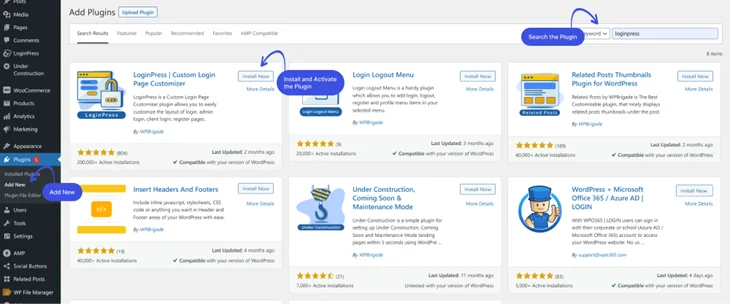
- Log in to your WordPress admin dashboard and go to Plugins > Add New.
- Search for “LoginPress”.
- Click Install Now, then Activate.
Once activated, LoginPress automatically hooks into the default WordPress login page (/wp-login.php).
Step 2: Access LoginPress Customizer
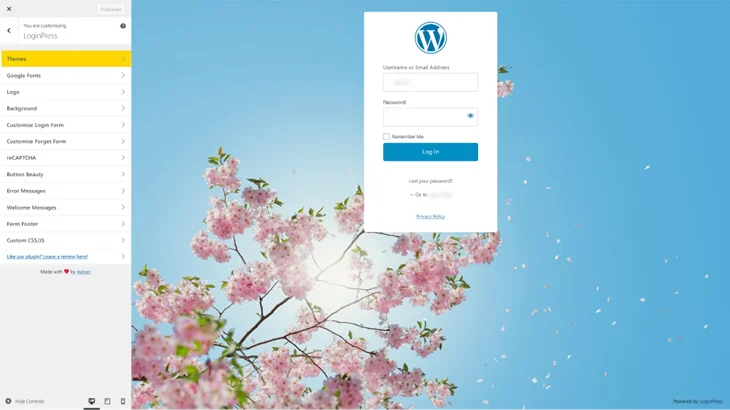
- Go to LoginPress > Customizer.
- The WordPress Customizer will open with a live preview of the login page.
- Any changes you make here are instantly visible.
This real-time preview makes design experimentation fast and safe.
Step 3: Customize the Login Page Design
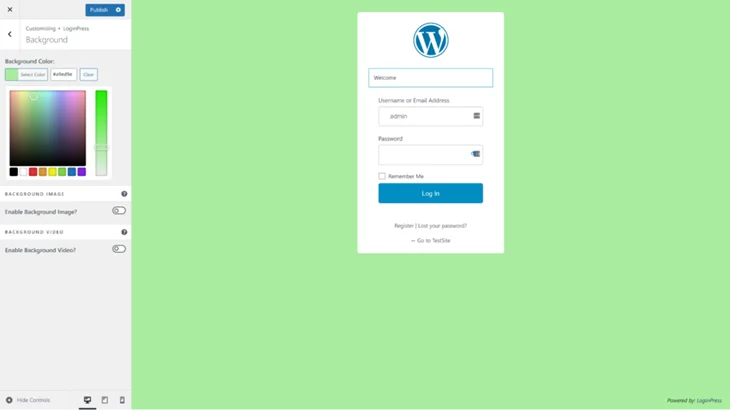
Inside the customizer, you can modify:
🎨 Background:
- Solid color.
- Gradient.
- Image (upload your own or use a pattern).
- Fullscreen or boxed layout.
🖼 Logo:
- Replace the WordPress logo with your own.
- Adjust logo size, width, and height.
- Change logo link URL (e.g., point to your homepage).
✍️ Form Styling:
- Input field colors.
- Button color, hover effects, and border radius.
- Form background opacity.
- Text and label colors.
🔤 Typography:
- Font size.
- Font color.
- Custom Google Fonts.
Step 4: Customize Login Page Behavior
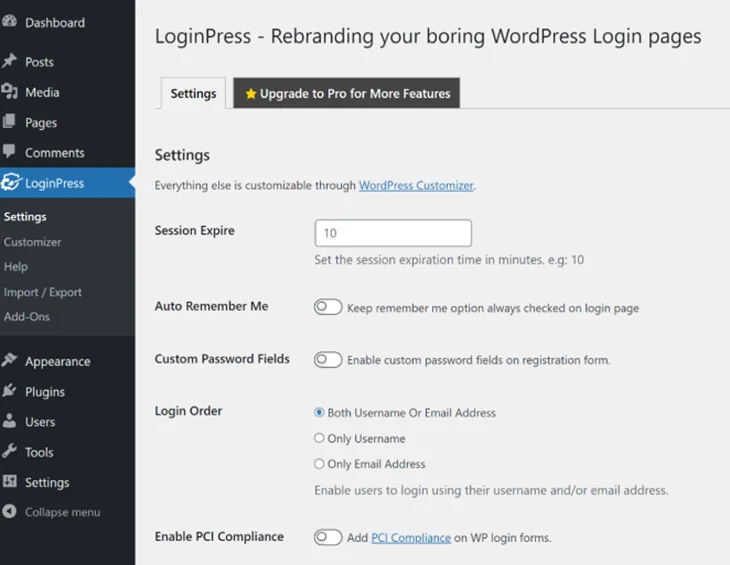
Under LoginPress > Settings, you can control functionality like:
- Change login error messages (hide default WP errors).
- Customize the “Lost your password?” text.
- Redirect users after login/logout.
- Enable “Remember Me” by default.
These small tweaks improve both UX and security.
Step 5: Security & Advanced Enhancements
LoginPress also supports:
- reCAPTCHA (Google reCAPTCHA v2/v3).
- Limit login attempts.
- Login redirects by user role.
- Social login (Google, Facebook).
These features help protect your login page while improving user convenience.
Step 6: Publish Your Changes
Once you’re done with all the changes you need:
- Click Publish in the Customizer.
- Visit /wp-login.php or /wp-admin to see the final result.
Your custom design now replaces the default WordPress login page.
Conclusion
Customizing your WordPress login page is a smart upgrade that goes beyond looks. It strengthens security, makes your brand impactful, and creates a more polished experience for every user who signs in.
By applying this often overlooked point, you reinforce trust, professionalism, and control over your site’s ecosystem.
Now take the next step. Apply these changes, secure your admin area, and make your login page a seamless extension of your WordPress website.
You May Also like: